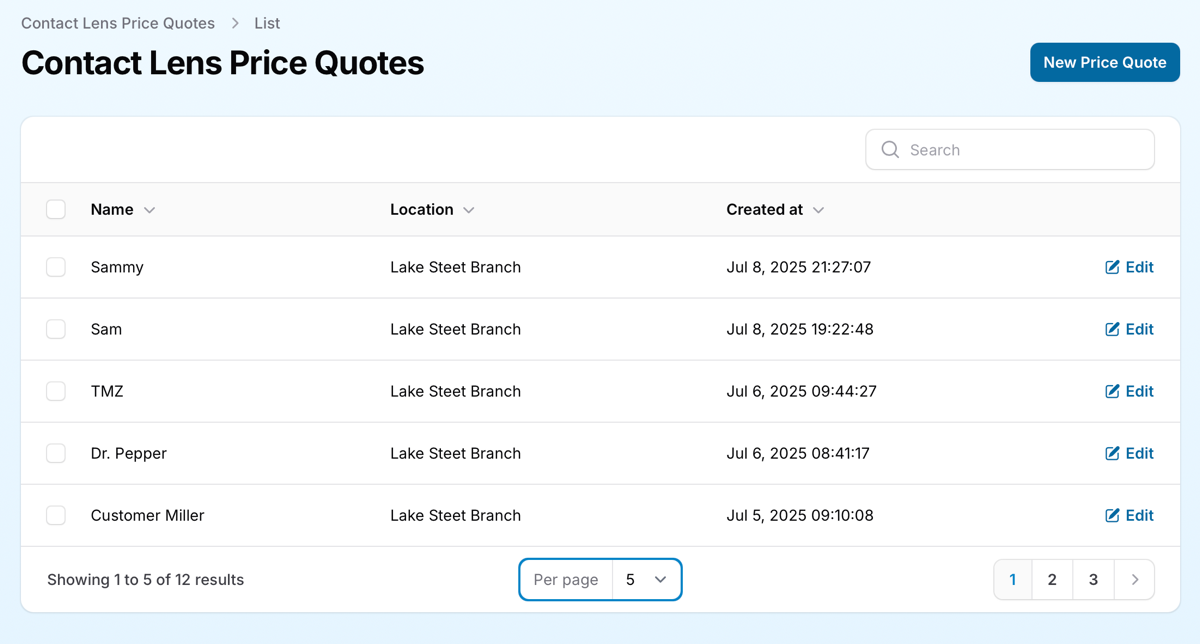
View Existing Quotes: The main screen displays previously generated price quotes for patients. You can click the “Edit” button to modify an existing quote if needed.
Create a New Quote: Click the “New Price Quote” button to generate a new quote. This will take you to a screen where you can input patient-specific details and lens information.
Creating a CL Price Calculation
New CL Price Quote screenAt the top of the Contact Lens Price Calculator screen, you can enter values specific to your patient that will be applied across all lens quotes for them. These values include:
Insurance Contribution: Enter the amount their insurance will cover. This will be factored into all quotes for this patient.
Year Purchase Discount *: If your practice offers a discount for purchasing a year supply, it will be applied automatically to year supply quotes.
Shipping Fees *: Separate fields allow you to input shipping costs for year supplies and partial supplies (e.g., 6-month supply).
Shipping Needed (Checkbox): If unchecked, shipping fees will not be included in the quote.
Patient Name and Office Location: Add the patient’s name and select your office location (useful for practices with multiple locations).
Selecting Contact Lens Brand
To create a quote for a specific contact lens brand:
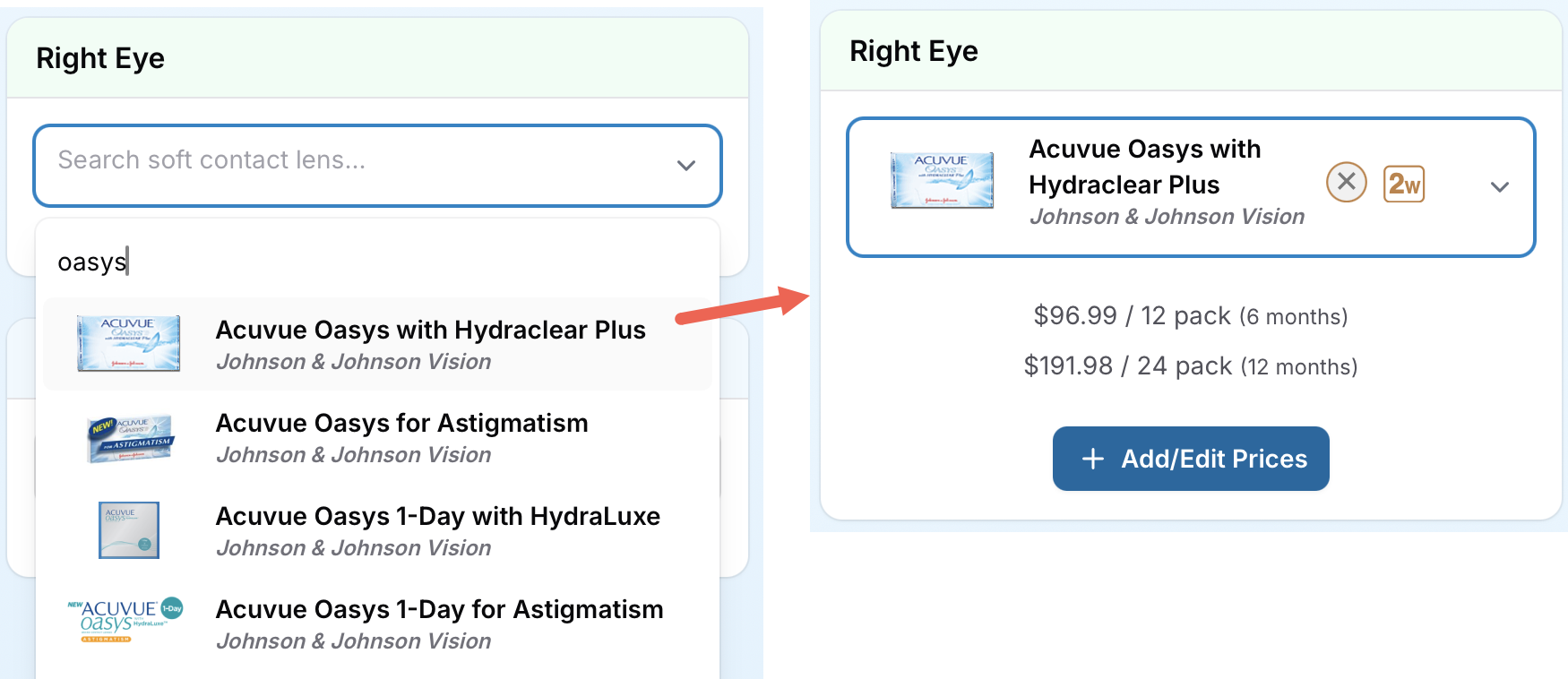
Select Lens Brands: Choose the lens brand for the right and left eye. By default, selecting a brand for the right eye will automatically apply the same brand to the left eye. You can adjust or remove the left-eye brand if the patient wears different lenses.
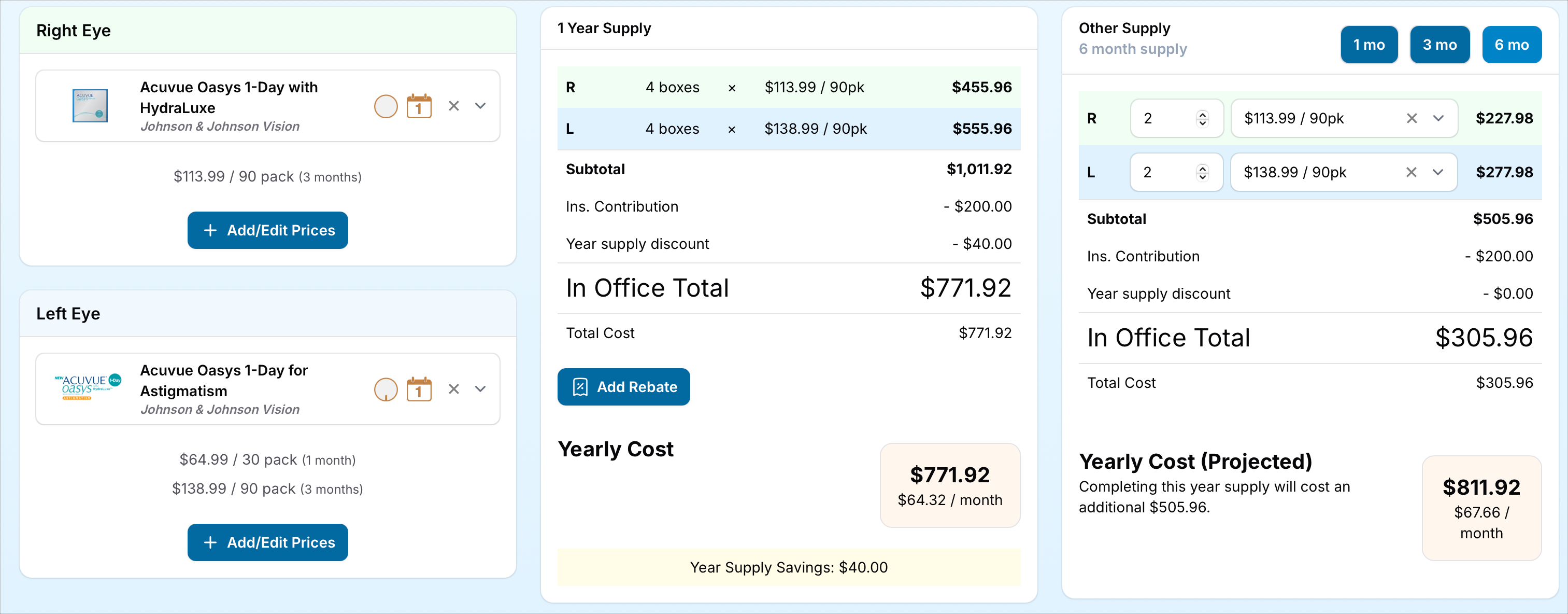
Package Options: Once a brand is selected, the available package options (e.g., 30-packs, 90-packs) will display alongside their prices as set in your inventory.
Edit Prices on the Fly: Click the “Add/Edit Prices” button to open a form where you can adjust lens prices or add new package options. This dialog also shows 1800contacts prices as a reference for setting your retail price.Screenshot 2025-06-17 at 9.52.20 PM.png290.49 KB
Price Quote Calculations
The calculator generates price quotes for two supply durations: a year supply or a partial supply.
Automatically calculates the number of boxes and box sizes needed to approximate a year supply.
Displays:
Subtotal: Includes lens costs and shipping fees (if applicable), but excludes insurance, rebates, and discounts.
In-Office Total: Factors in insurance, rebates, and discounts, showing the amount the patient will pay in-office.
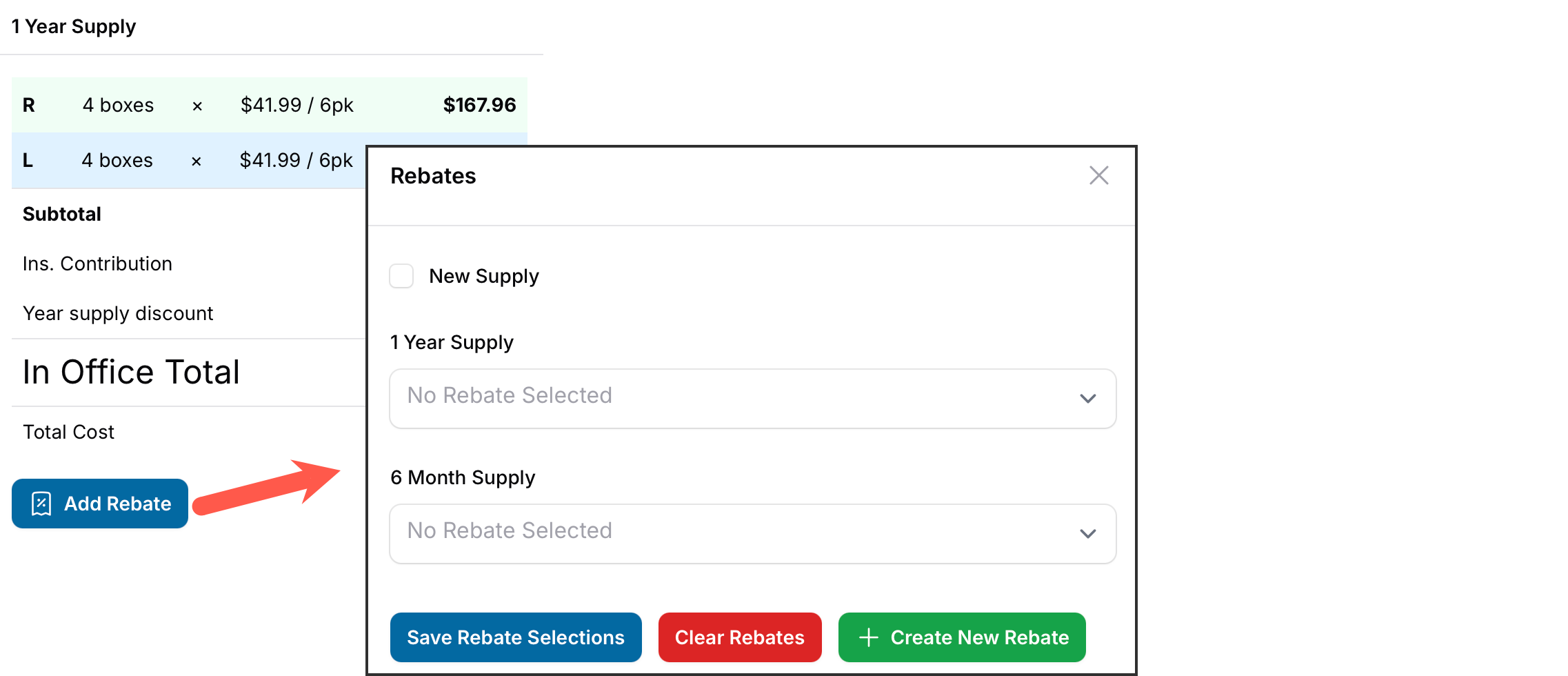
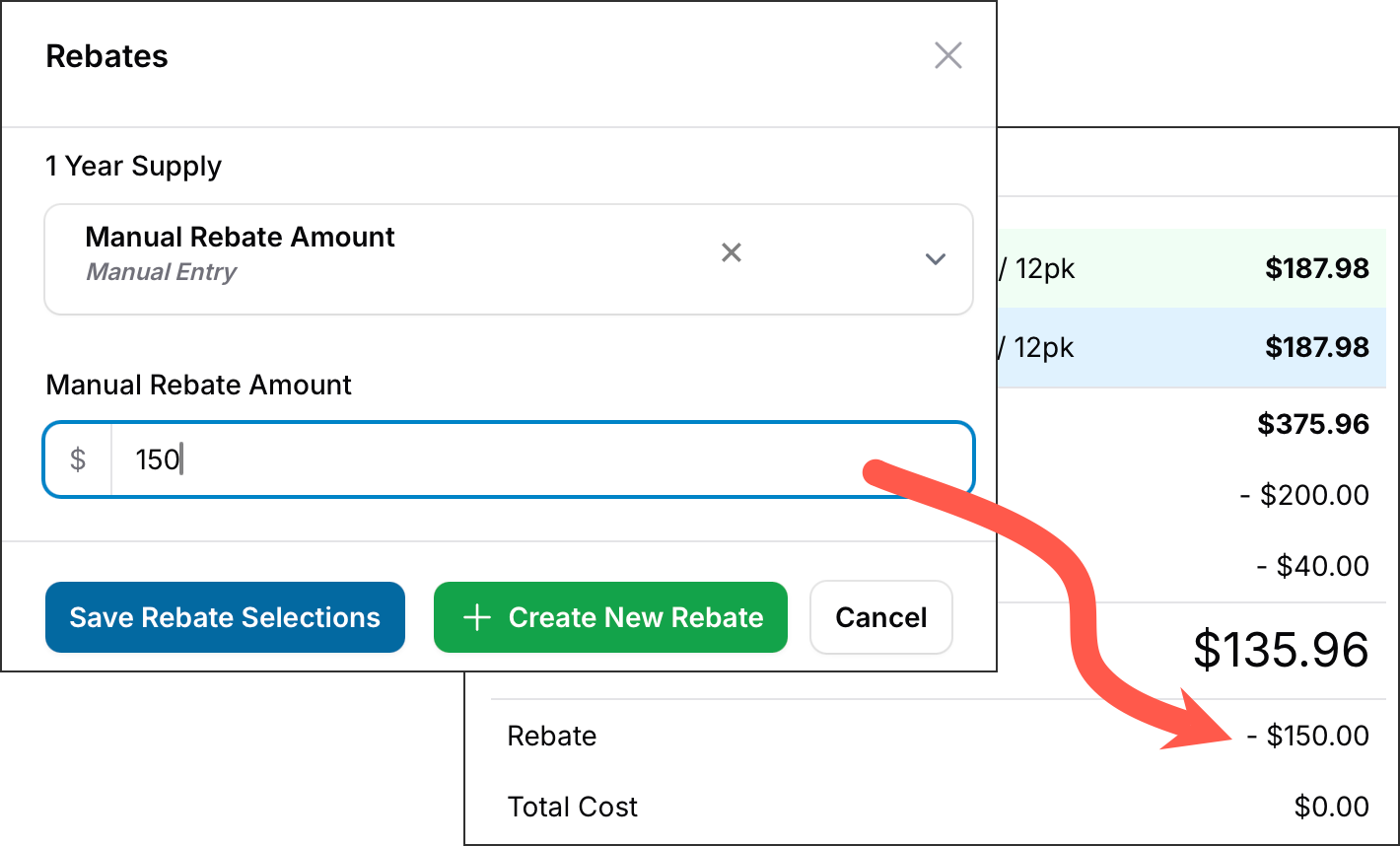
Rebate Options: Click the “Add Rebate” button to open the rebate dialog, where you can select or manually enter rebate values. Applied rebates are displayed on the form.
Yearly Cost to Patient: Shows the final cost to the patient after receiving rebate reimbursements.
Partial Supply Calculations:
Defaults to a 6-month supply but allows adjustments for other durations (e.g., 1-month, 3-month, or 6-month supplies) by clicking the respective buttons at the top of the form. *
Option to manually select combinations of package sizes (e.g., three 90-packs per eye).
Displays:
Yearly Cost (Projected): Calculates the cost of the selected partial supply PLUS the expense of additional lenses needed to complete a year supply.
* Supply options may be limited by lens brand replacement schedules and package sizes (for example, monthly lenses that come in 6-packs cannot be quoted for a 1-month supply).
Adding Rebates
Rebates can be seamlessly applied to price quotes during the calculation process, making it easy to highlight savings for your patients.
Each tab represents a different lens brand, allowing you to compare pricing and supply options.
Patient-specific values (e.g., insurance contribution, shipping fees) are applied consistently across all tabs.
Finalizing and Sharing Quotes
EyeDock PM makes it easy to share CL price calculations with your patients.
Once a lens quote is completed:
Save the Quote: Press the “Create” button at the bottom of the page to save the quote.
Print as PDF: Generate a PDF version of the quote to provide to the patient.
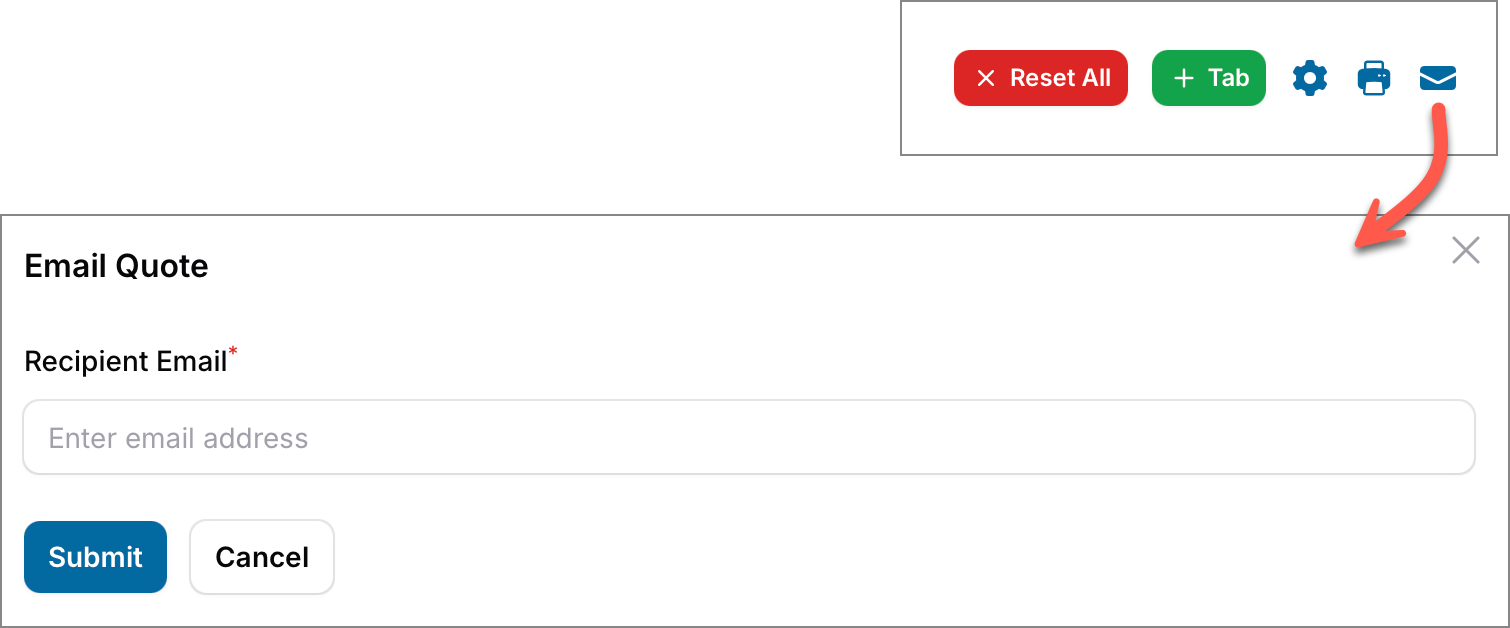
Text or Email the Quote: Use the “Message” or “Email” buttons at the top of the page to send the quote directly to the patient. Enter their email address or cell phone number when prompted.
As shipping fees and year supply purchase discounts are typically fixed amounts, their default values can be set in the Settings to save time during price calculations.
CL Quote Calcs defaultsBy clicking the Settings icon (the gear), you can configure default values for the calculator:
Shipping Costs: Set standard shipping fees for year and partial supplies.
Year Supply Discount: Define the discount amount applied to year supply quotes.
Expected Yearly Cost for Partial Supplies: Enable or disable the display of projected yearly costs for partial supplies.
Comparison Text: Add text comparing year supply savings to partial supply costs (e.g., “Year supply savings: $139.99”).
Encouraging Year Supply Purchases
The calculator is designed to illustrate the benefits of purchasing a year supply upfront.
Rebate Availability: Many rebates apply only to year supply purchases, making them more affordable than partial supplies.
Projected Costs: The calculator shows how partial supply purchases can result in higher yearly costs when additional lenses are needed later.
Savings Comparison: Patients can clearly see how buying a year supply saves money and reduces long-term expenses.